View our Release Page Need the IT installer? Get the .MSI
Support & Sales will be offline from December 24 at 12:00 pm and will return December 26 at 9:00 am (CDT) December 31 will also have shortened support hours ending at 12:00 pm and resuming January 1 at 9:00 am (CDT)

How to Release / Delete

PHDwin V2 License File / Unlock

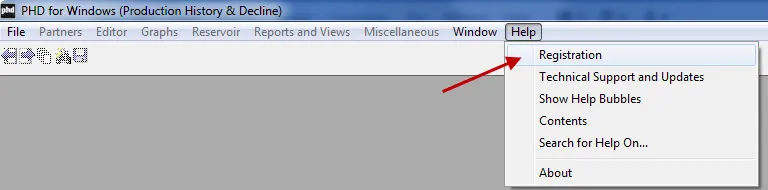
Step 0 – IF in PHDwin V2 Hit Help

  1. In the Help window hit “Registration”
     

Step 1 – IF On the Splash Screen

  1. In the Splash Screen hit “Registration” on the bottom right corner above “Close”
     
  2. In order to release a license your license string information must populate. The message “invalid license” means you can not release a license.
PHDwin 2.11.1 Splash Screen where users can register license for software use

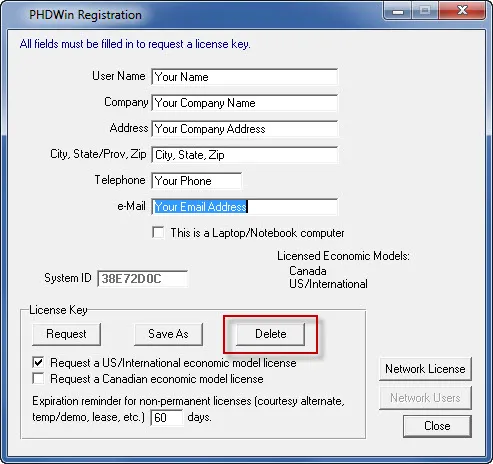
Step 3 - Releasing / Deleting a License File

1. Fill out all field forms.

2. Make sure System ID is populated.

3. Select Delete.

A single-user unlock license file allows a single individual to access PHDwin V2 on a single machine. Access to the software is limited to the computer on which the software is installed.

This is our recommended installation type. It takes the least amount of time, money, and compute resources to deploy.

The standard installation only requires the .exe application versus the .msi application for network deployments.

By releasing a license you forgo ownership of your existing perpetual install of PHDwin in a given machine. In order to get the license unlock back you may need to pay the cost of a new license unlock file.

Main Site Portal V3 Download PHDwin Support PHDwin Week
Explore PHDwin